

Global Function Bar

Version & Updates
When hovering the mouse over the " " icon, you can view the software version information. When connected to the internet, clicking the "
 " icon allows you to check for updates. If a new version is detected, you can click to update to the latest version.
Language Switching
Hover the mouse over the " " icon and click "Language" to select the language you want to use. Chinese, English, Russian, German, French, Japanese, Korean, and Spanish are currently supported, and more languages will be added in the future.
Theme Switching
After moving the mouse over the " " icon and clicking on "Theme", you can choose your preferred theme color.It supports light/dark mode switching, adjustment of control corner radius, and selection of global font size (large/medium/small).
Logo replacement is supported. In Theme Settings, click the "Change Logo" function under "More Settings". In the pop-up window, you can replace the main interface logo image and the startup page image you want to use. Only SVG format is supported.
System Settings
After moving the mouse over the " " icon and clicking on "System Settings", you can modify the data storage path when the system is running in the pop-up window. Please select a disk with sufficient space to ensure a smooth and efficient testing process. After the modification, the software will need some time to perform data migration. Please wait patiently.
Supports changing the number of decimal places for global data display; the default is 3 decimal places.
Help & Feedback
Move the mouse over the " " icon and click "Help and Feedback". Click "Forum Support" to access the official OpenTest forum for assistance, or click "Feedback Form" to fill in the form with your questions. The staff will handle the feedback within 1 working day after receiving it.
Authorization
OpenTest supports two modes of use: online use after user login, and offline use through license authorization.
Online Use:
In the login pop-up window, enter your email address and password to log in.
If you have not registered yet, click "Don't have an account?" in the login pop-up window, then fill out the form to complete registration. A free registered account only supports Community Edition features and simultaneous use of 2-channel input and 2-channel output. More advanced features require a plan upgrade.
The online use function supports 30 days of offline use without logging in again. In other words, after logging in once, you can use it offline, and log in again after 30 days.
Upgrade Plan:
Hover the mouse over the avatar icon and click "User Center". In the User Center pop-up window, click the "Upgrade" button, or directly visit www.opentest.com/Pricing, choose the plan and optional package that suit you, and complete the payment to upgrade your plan.
A personally purchased plan will be automatically linked to your account. If you need to use it offline, you must unlink it first.
Offline Authorization:
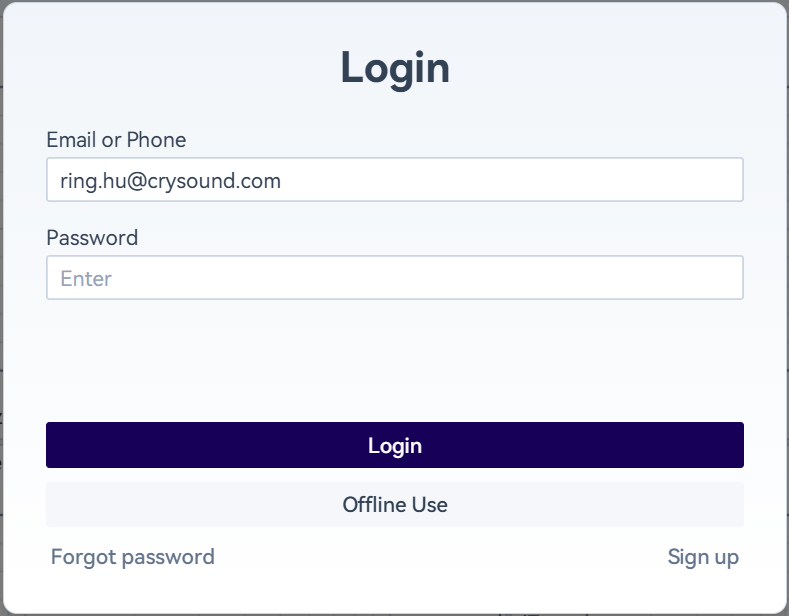
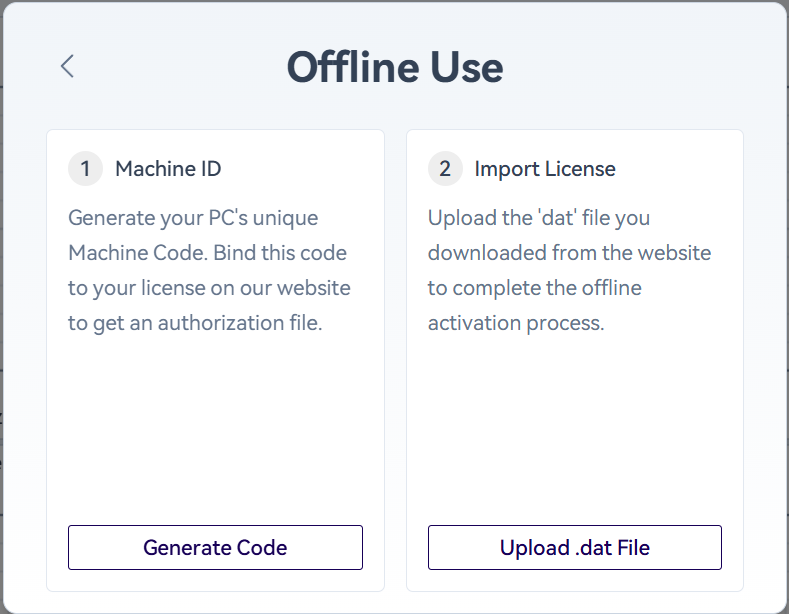
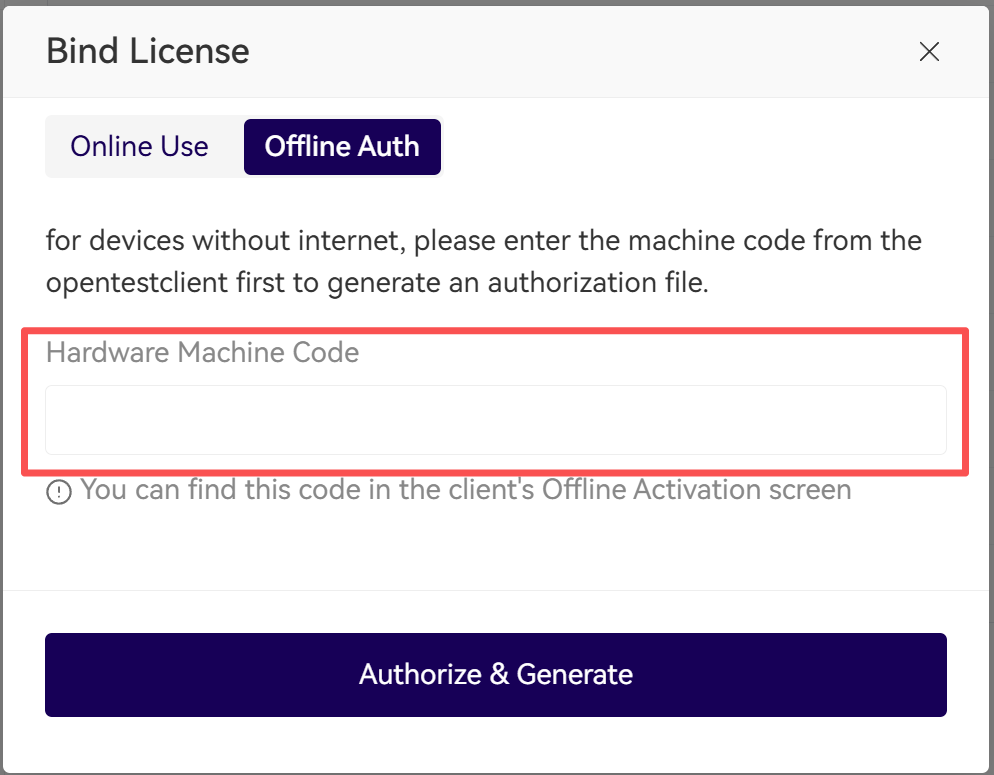
In the login pop-up window, click the "Offline Use" button, then click "Generate Machine Code" and copy the generated machine code.In "My Authorization Codes" in the Personal Center on the OpenTest website, bind this machine code to the plan you want to use. After all required plans have been successfully bound, download the authorization file. The system will automatically merge the machine code and all bound plans into one file.Import this file into the client. After verification is successful, you can use OpenTest offline.